Use SharedClipboard like AirDrop
- Get a private link. Open sharedclipboard.com on one device and click Get a private link.
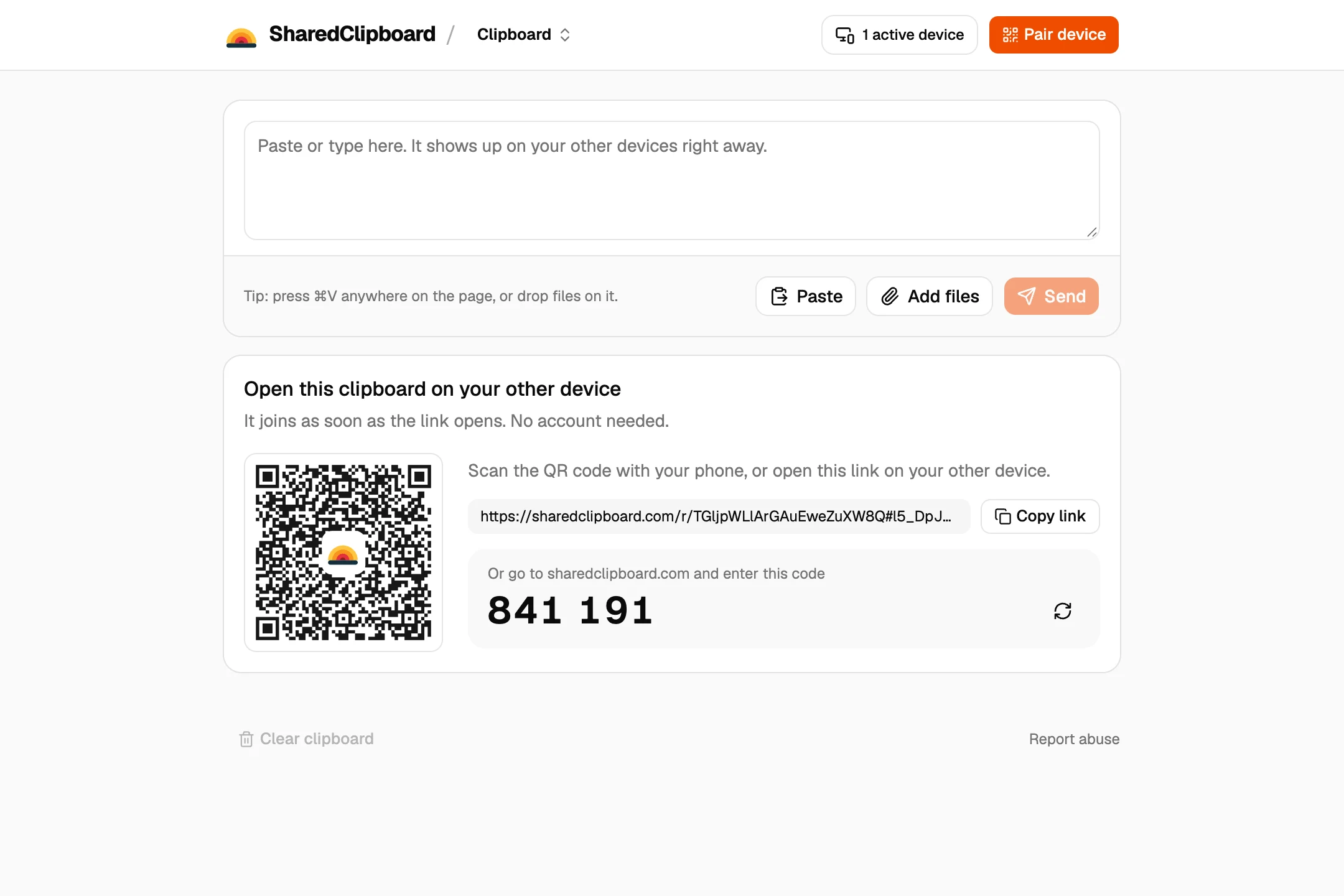
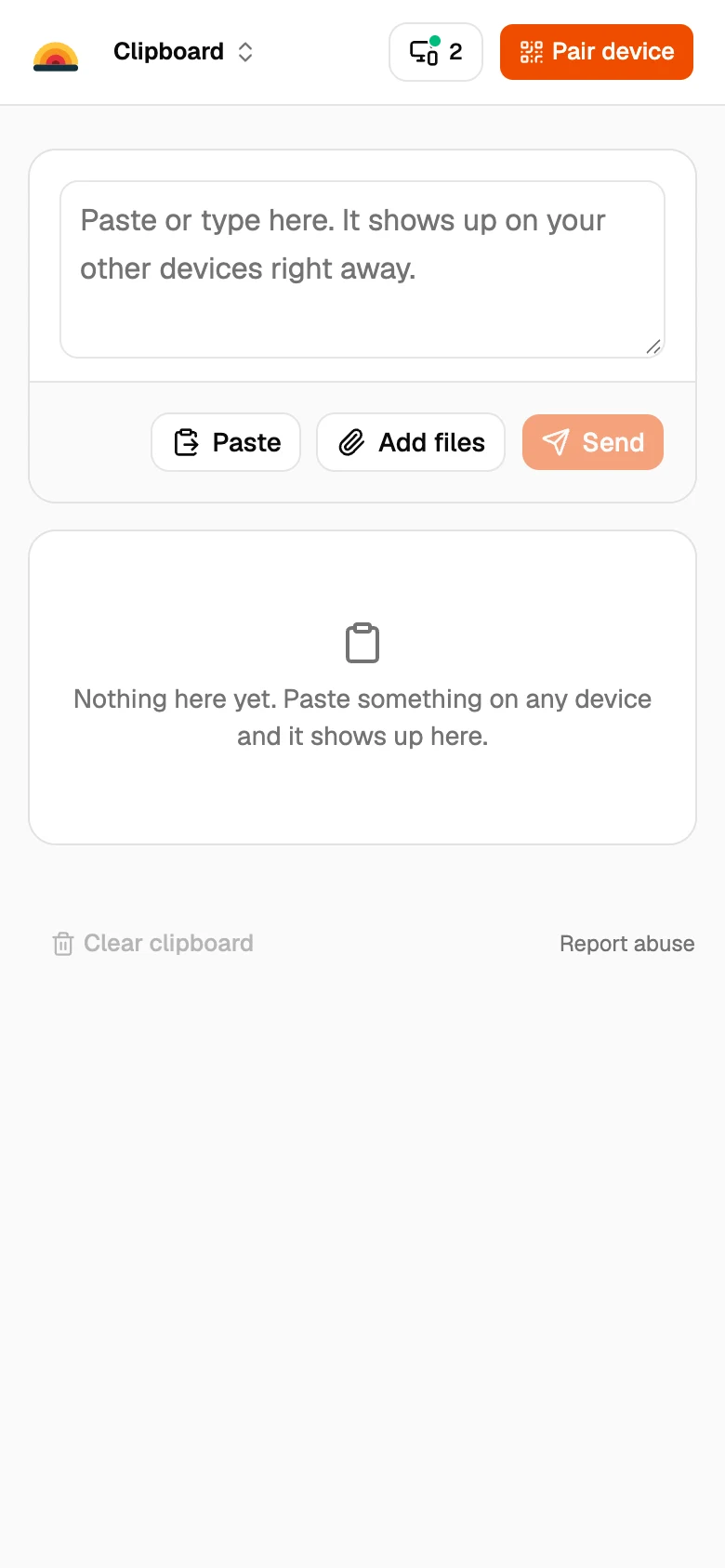
- Open it on your other devices. Scan the QR code with your phone, or type the 6‑digit code on another computer.
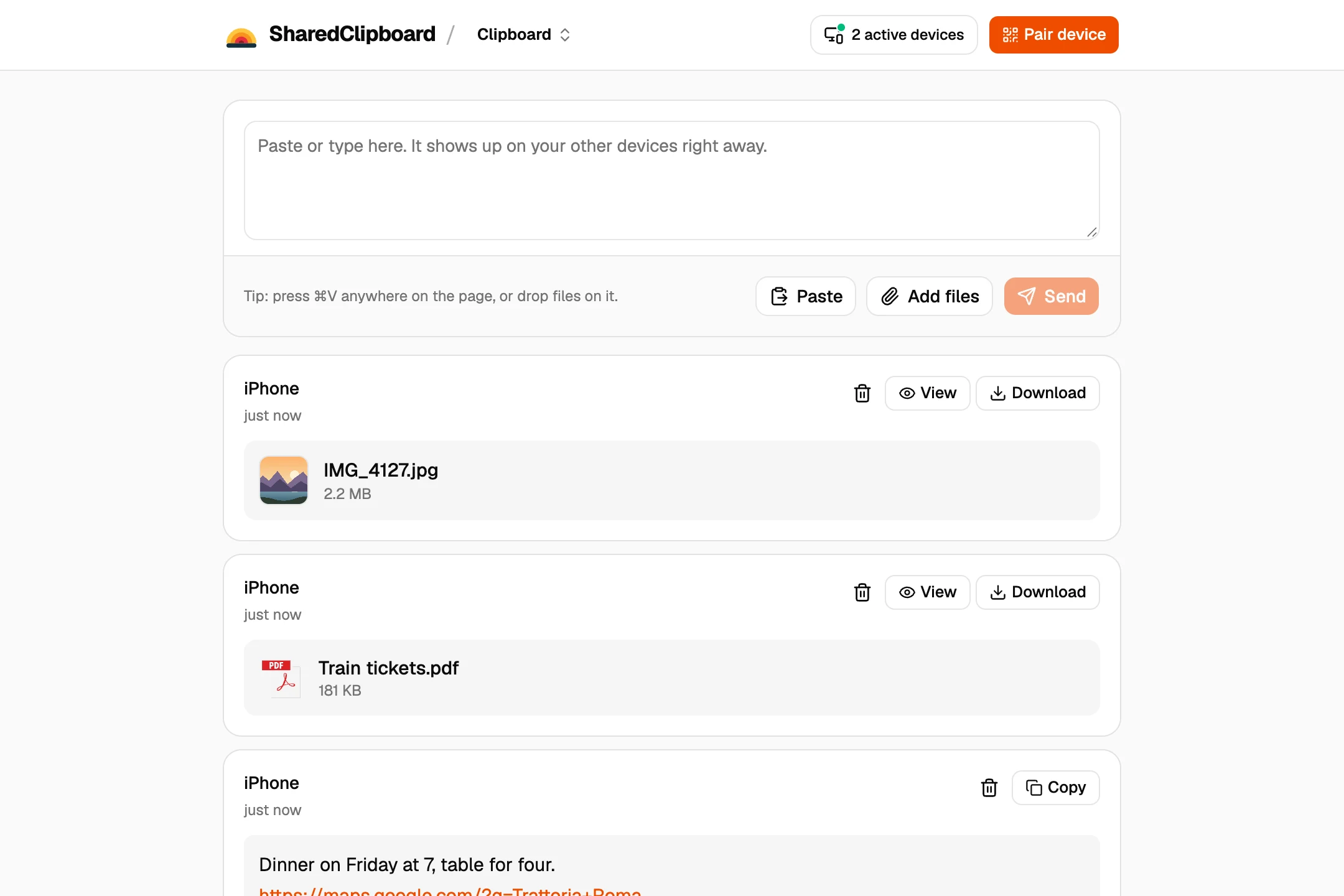
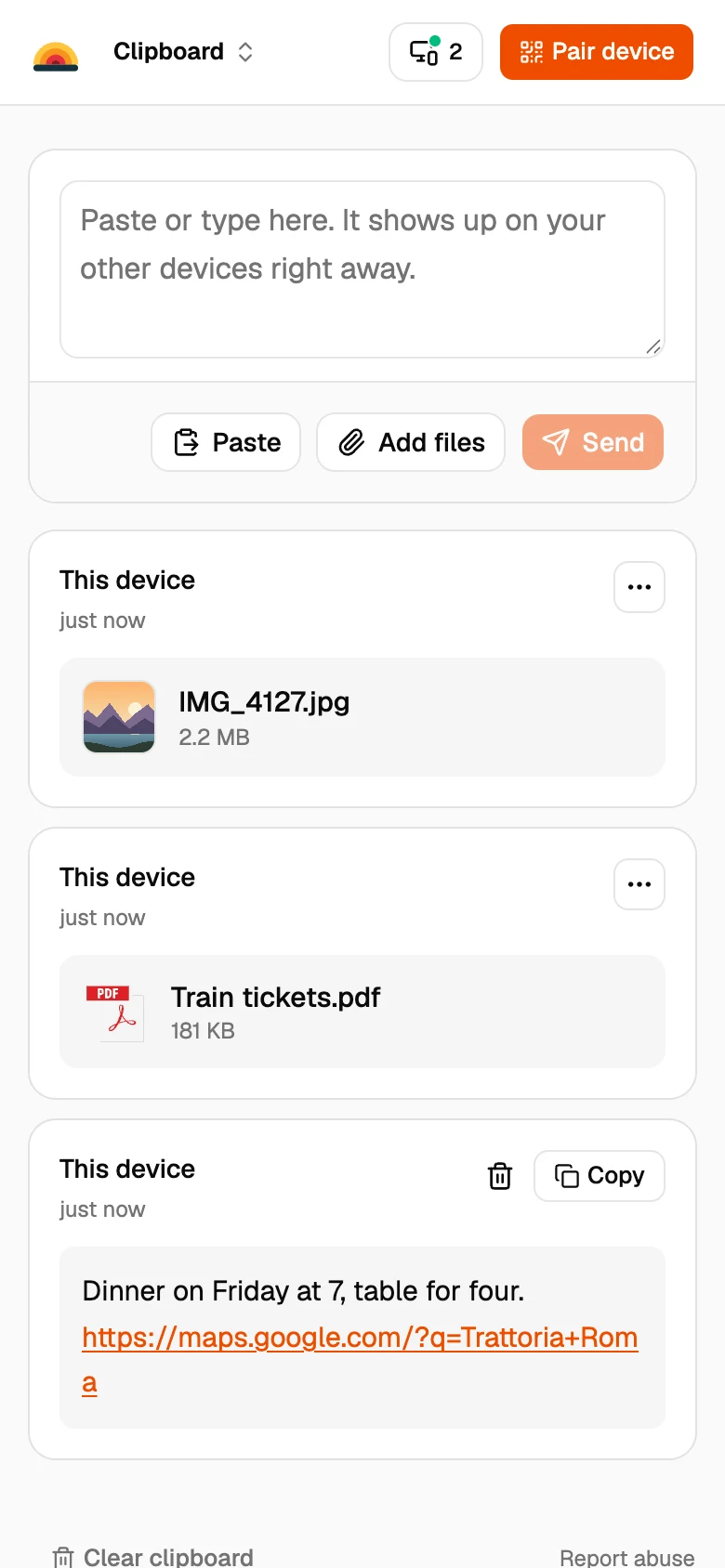
- Share anything. Add photos, files or text on one device, and they show up on all the others.
Other AirDrop alternatives
Quick Share
Google’s file sharing for Android, Windows and Chromebooks. Newer Pixel and Samsung Galaxy phones, and a few others, can also swap files with AirDrop.
LocalSend
A free, open source app for every platform. Install it on both devices; they need to be on the same Wi‑Fi.
PairDrop
A free, open source file sender in the browser. It finds devices on the same Wi‑Fi, and can pair devices on different networks.
Email or a chat app
Works anywhere you’re signed in, but chat apps often shrink photos.
Good to know
- SharedClipboard keeps text, links and files in one shared list, so you can come back to them later, not just send once.
- Everything is end‑to‑end encrypted, and files are never stored on our servers.
- Both devices need to be online at the same time. Files go straight from one to the other and are never stored on our servers.
- Each file can be up to 100 MB.
Questions
What is the best alternative to AirDrop?
For Android and Windows, Quick Share. For any mix of devices with nothing to install, a browser tool like SharedClipboard or PairDrop.
Is there AirDrop for Windows?
No. Apple doesn’t make AirDrop for Windows. Use a browser tool, LocalSend, or a USB cable.
Can Android phones use AirDrop?
Some can. Newer Pixel and Samsung Galaxy phones, and a few other models, can swap files with AirDrop through Quick Share. Most other Android phones can’t.
Does SharedClipboard work without Wi‑Fi?
Both devices need to be online, over Wi‑Fi or mobile data. They don’t need to be on the same network.
Updated September 27, 2026