Copy on your phone, paste on your computer
- Open a private clipboard on your computer. Go to sharedclipboard.com and click Get a private link.
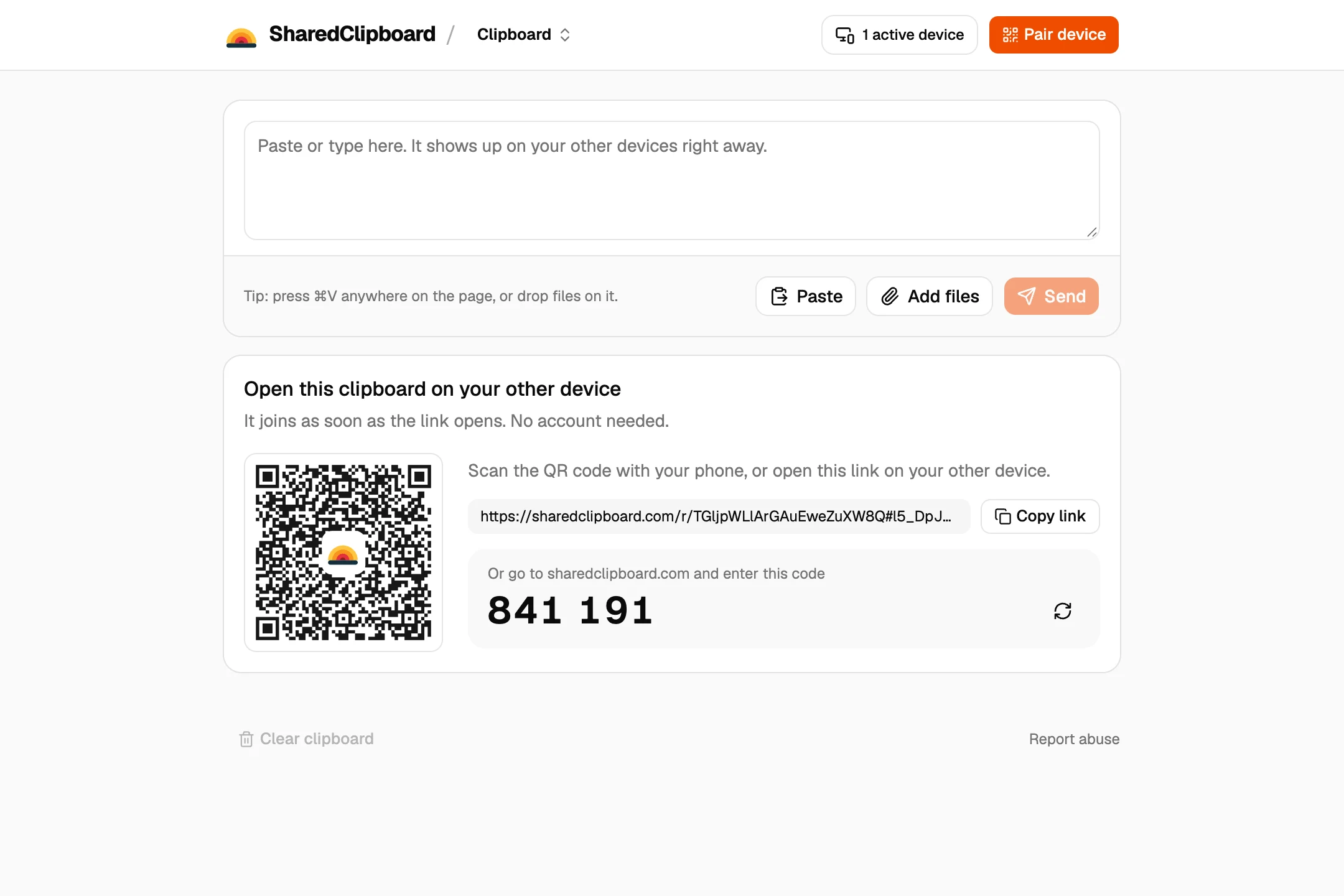
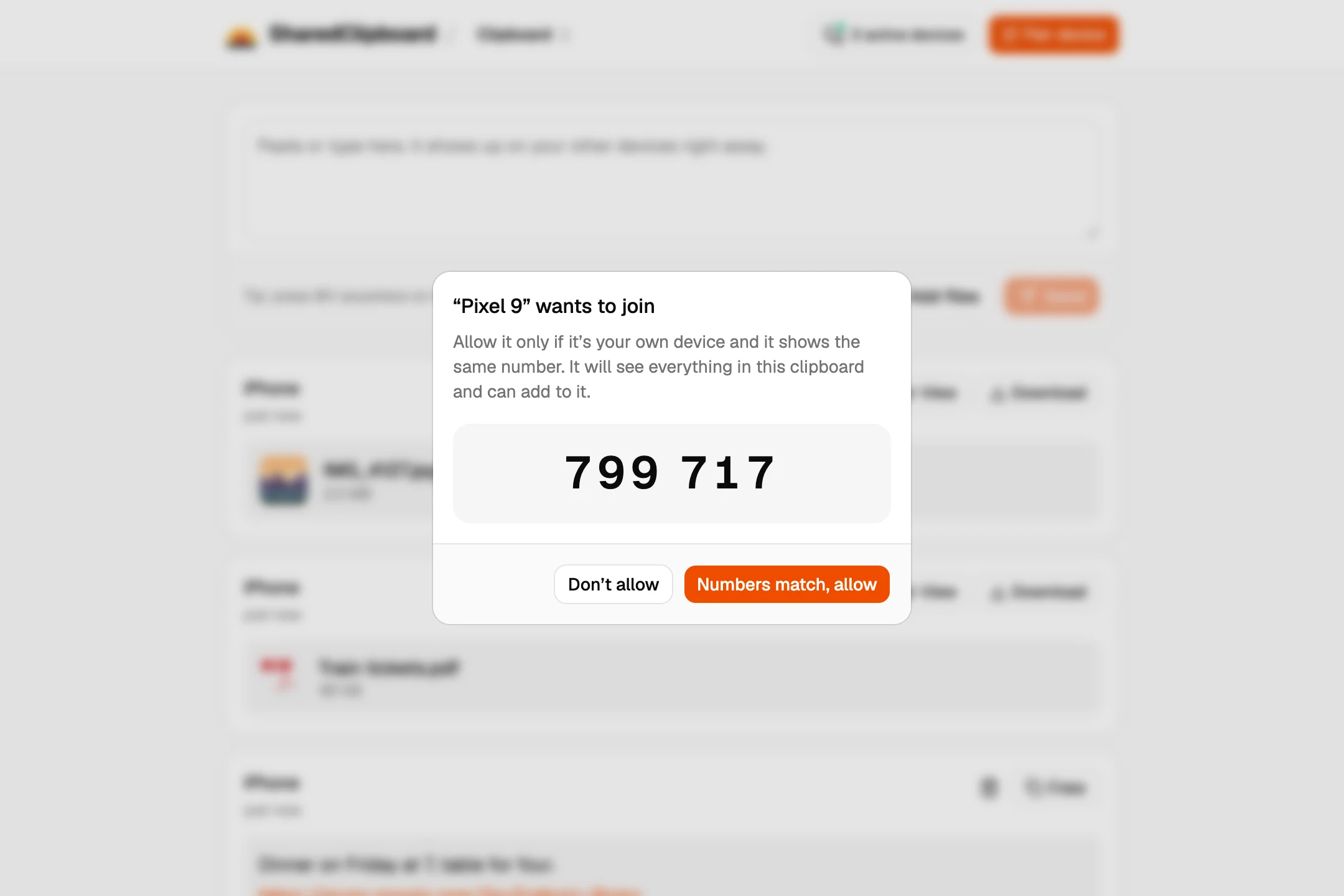
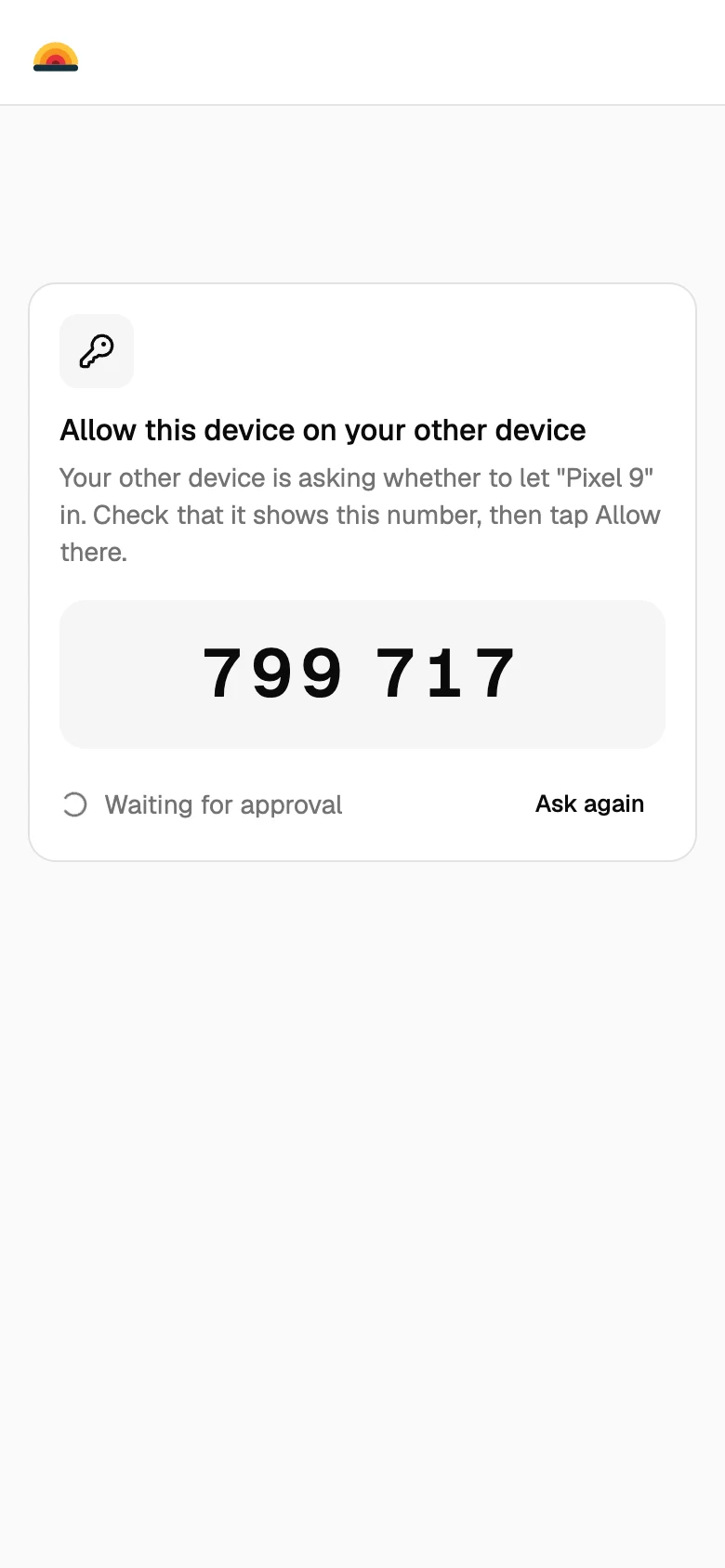
- Open it on your phone. Scan the QR code with your phone’s camera. Or type the 6‑digit code at sharedclipboard.com and allow the phone on your computer.
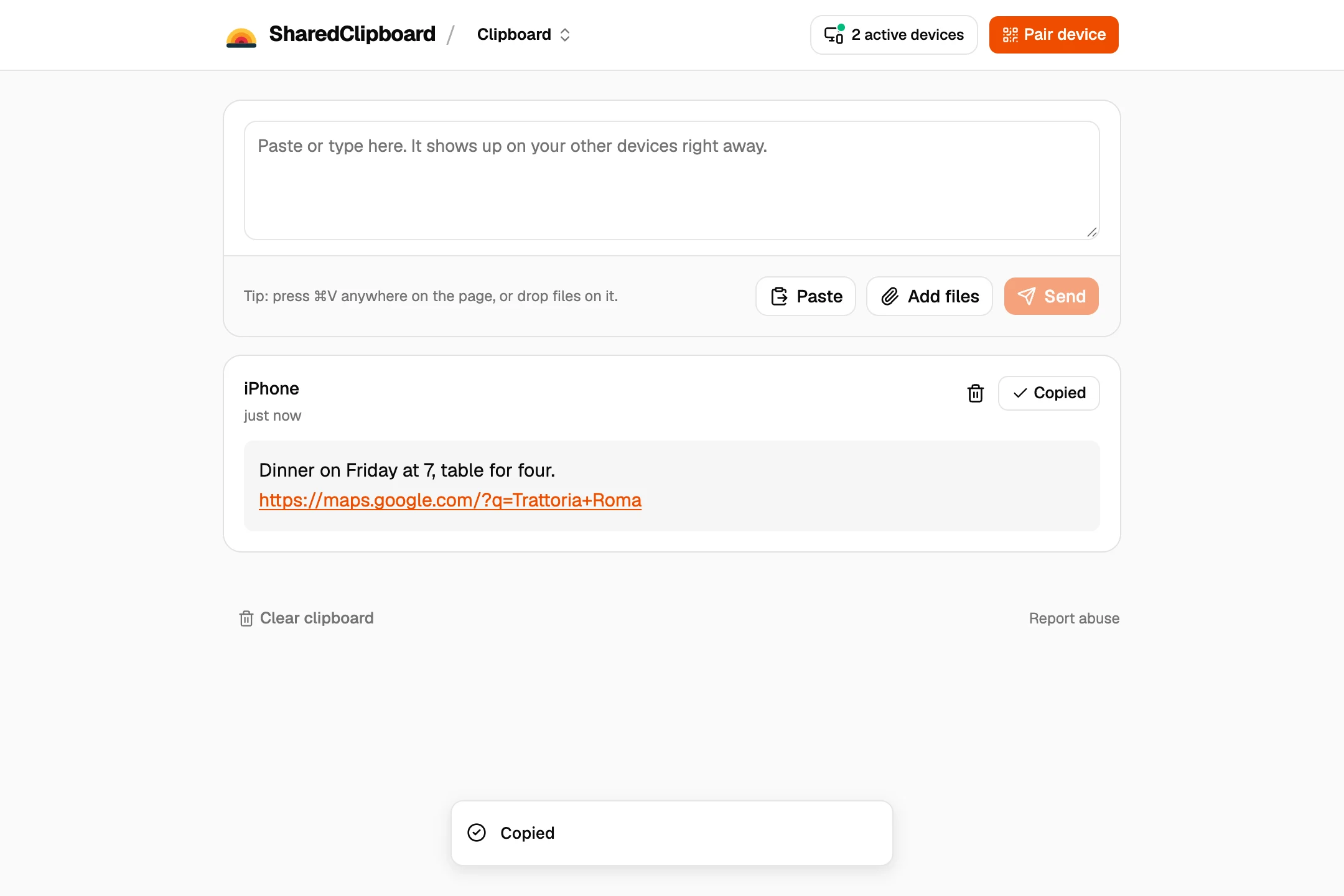
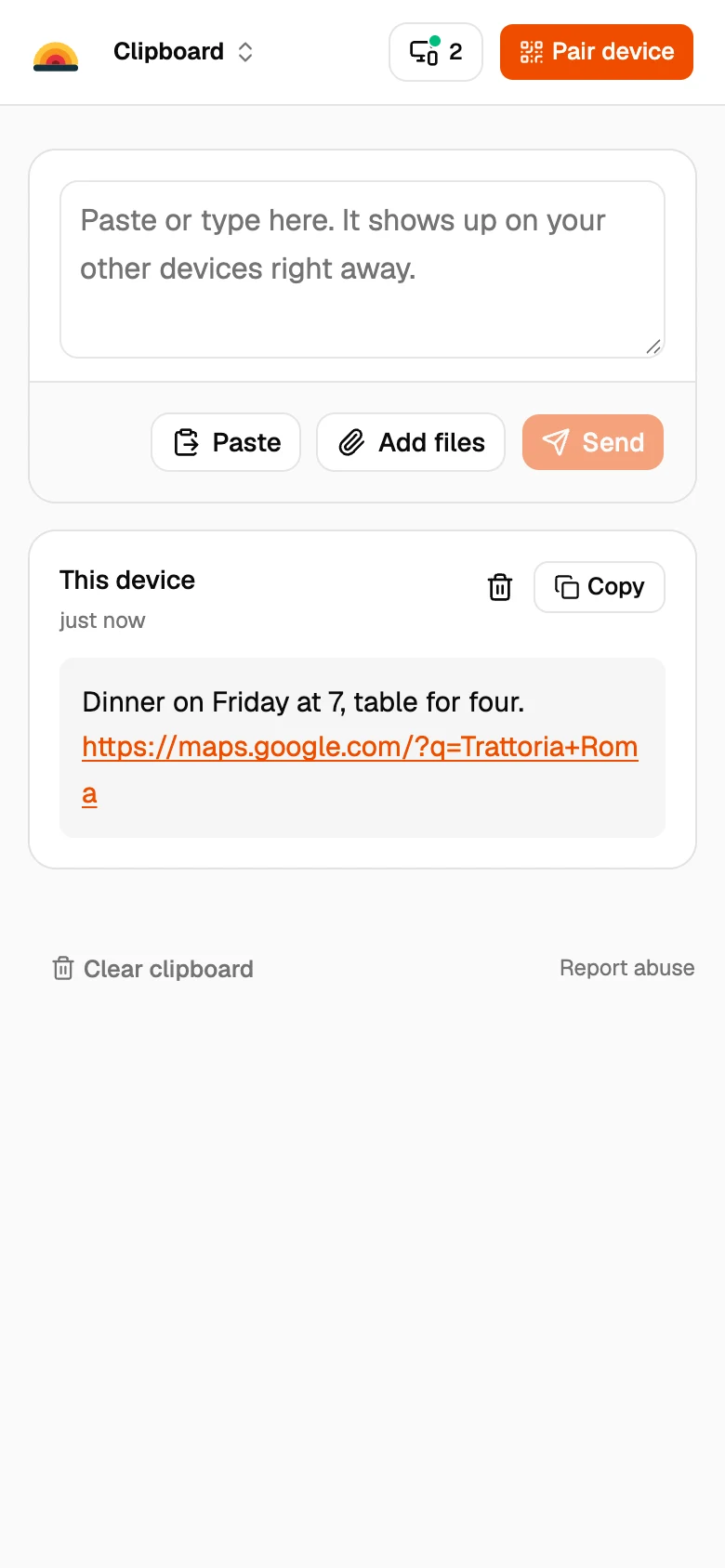
- Paste on one, copy on the other. Tap Paste on your phone. On your computer, click Copy next to the text and paste it wherever you need it.
Other ways to share a clipboard
Universal Clipboard (iPhone and Mac)
If both are Apple devices on the same Apple ID with Handoff turned on, you can copy on one and paste on the other. It doesn’t work with Windows or Android.
Phone Link (Android and Windows)
Microsoft’s Phone Link can share the clipboard between Windows and some Android phones, mostly Samsung. It doesn’t do this for iPhones.
Emailing yourself
Works on anything, but you need to be signed in on both devices, and the notes pile up in your inbox.
Good to know
- Text stays in the clipboard until you delete it, so you can come back to it later. Anything left deletes itself after 7 days.
- Links you paste can be opened with one tap on the other device.
- Photos and screenshots work the same way: paste them, or tap Add files.
- It works in both directions and with any mix of devices: iPhone, Android, Mac, Windows, Linux and Chromebook.
Questions
Can I copy and paste from my iPhone to a Windows PC?
Yes, with a clipboard both can open. Open SharedClipboard on both, paste on the iPhone, and copy the text on the PC.
How do I copy text from my Android phone to my PC?
Open the same SharedClipboard on both. Paste on the phone, and the text appears on the PC with a Copy button.
Is it safe to paste a password?
It’s end‑to‑end encrypted, so only your devices can read it. Delete it when you’re done and it’s gone from every device.
Do I need an app?
No. SharedClipboard runs in the browser on phones and computers.
Updated September 27, 2026