Send files from your iPhone to your PC
- Get a private link on your PC. Open sharedclipboard.com on your PC and click Get a private link. A QR code appears.
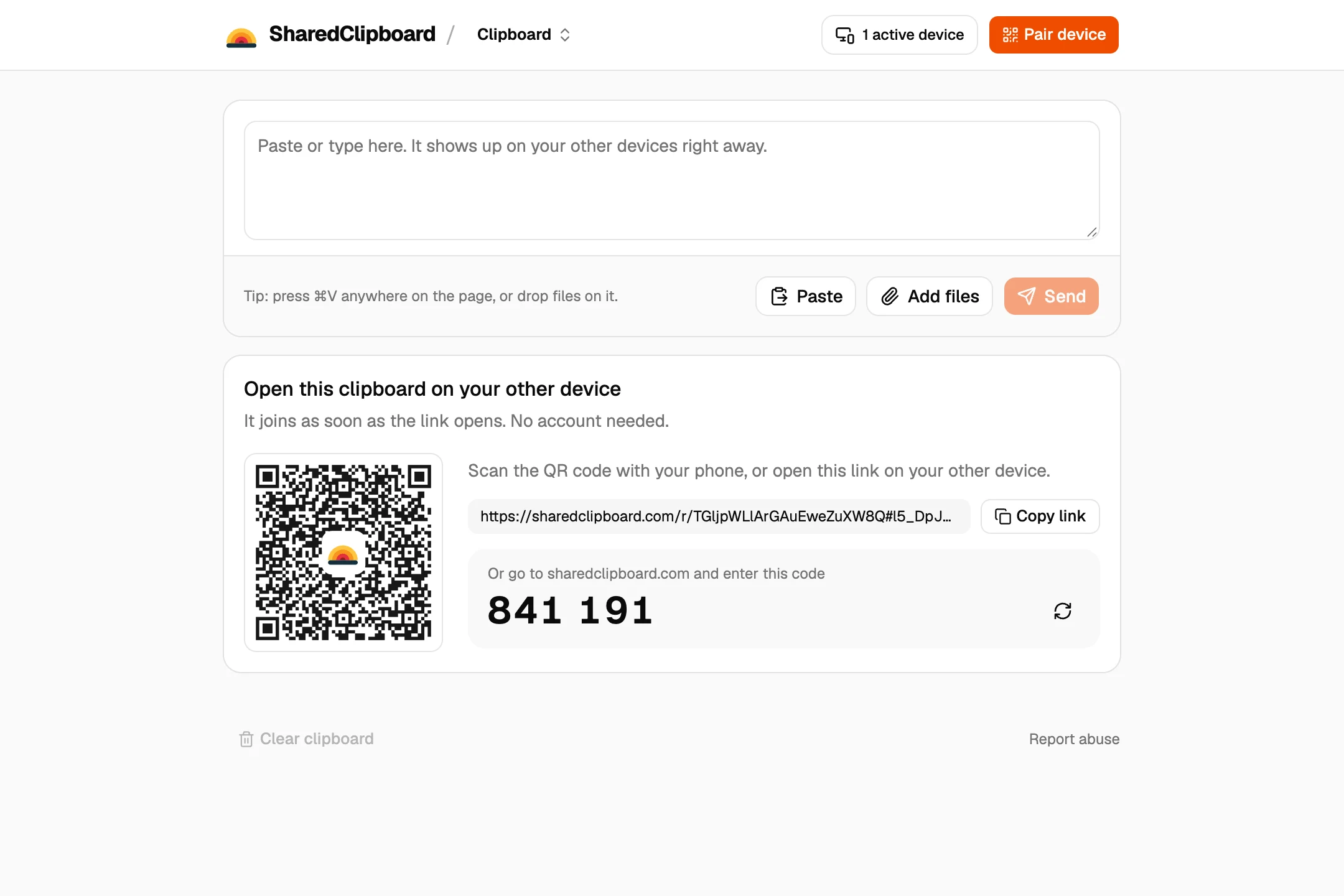
- Scan the QR code with your iPhone. Point the iPhone camera at the code and tap the link. The same clipboard opens in Safari, with nothing to install.
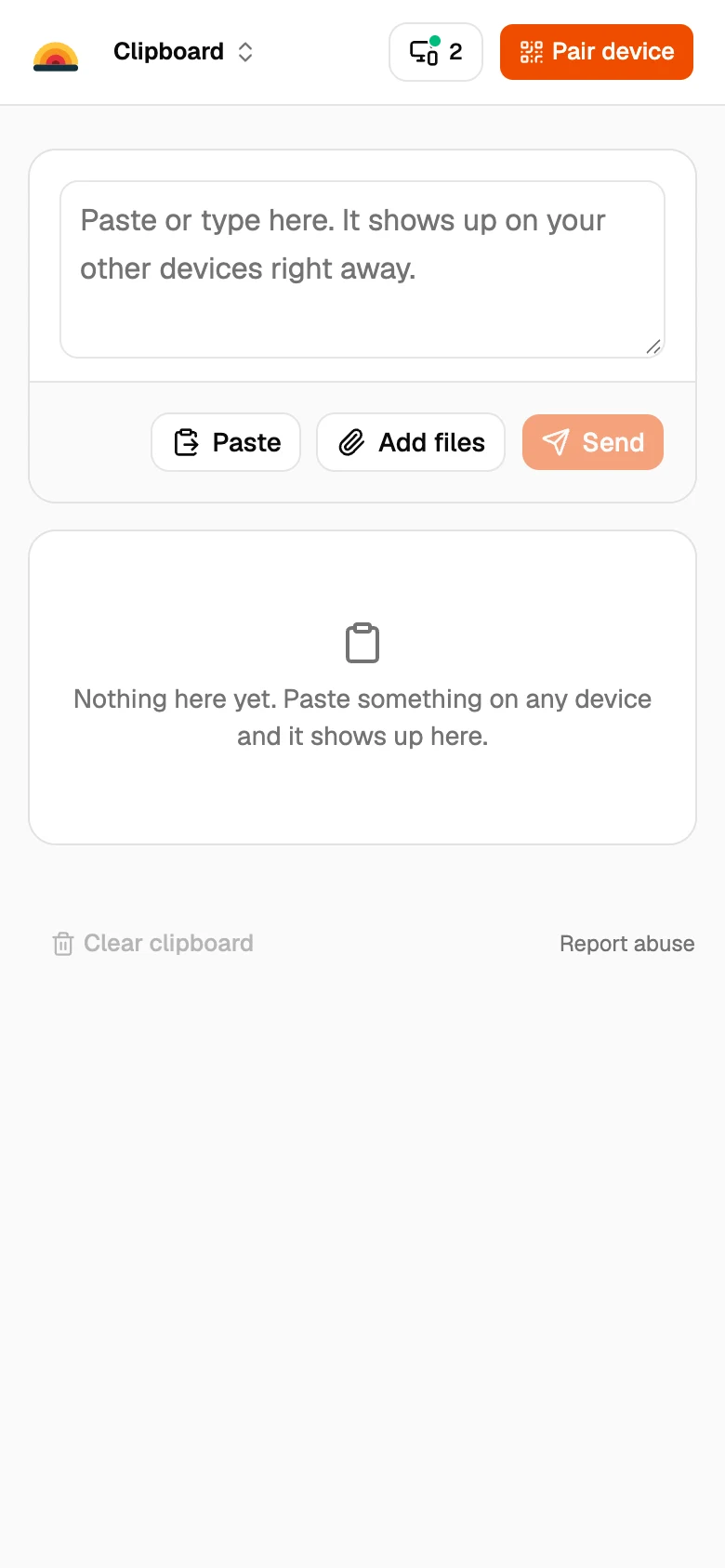
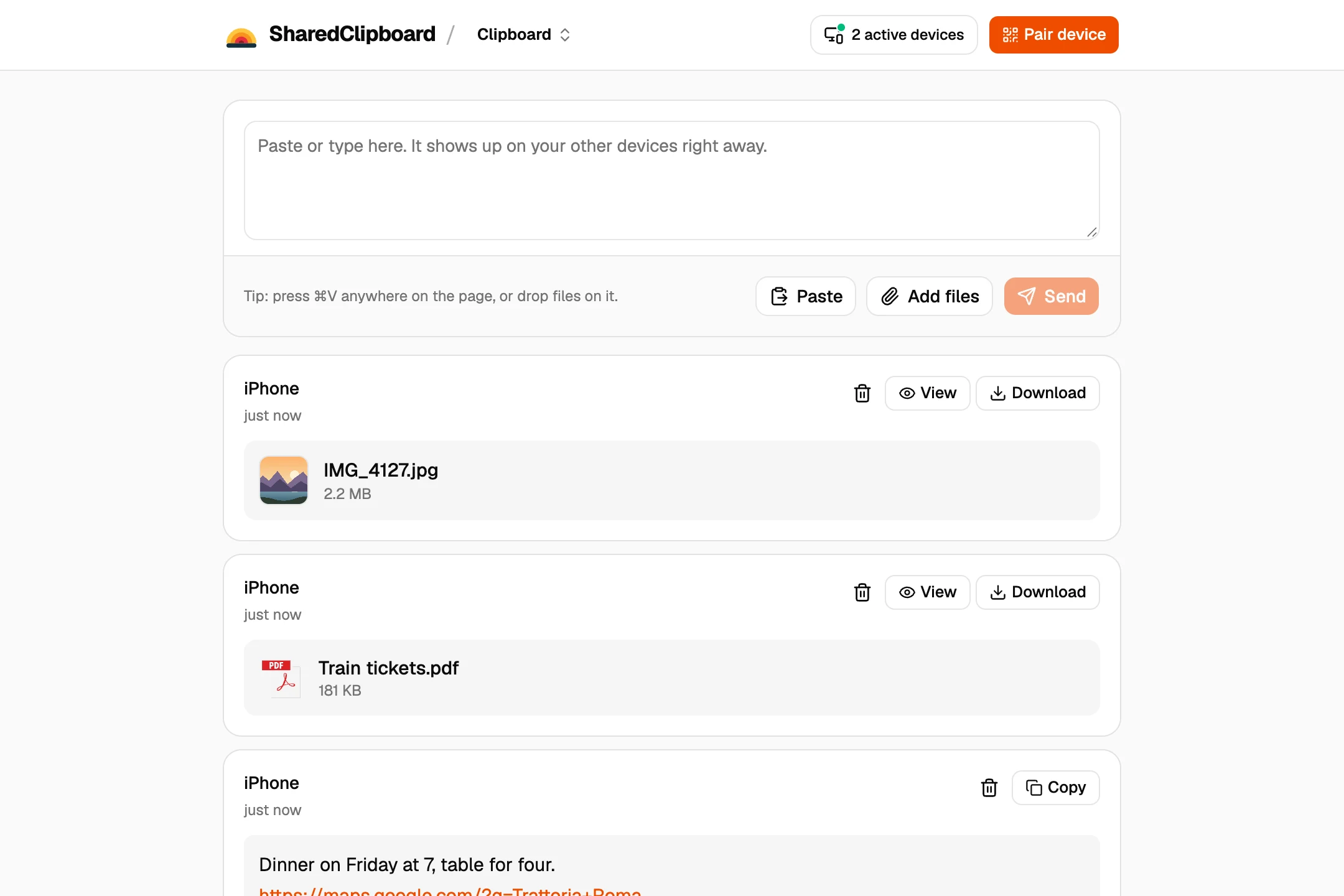
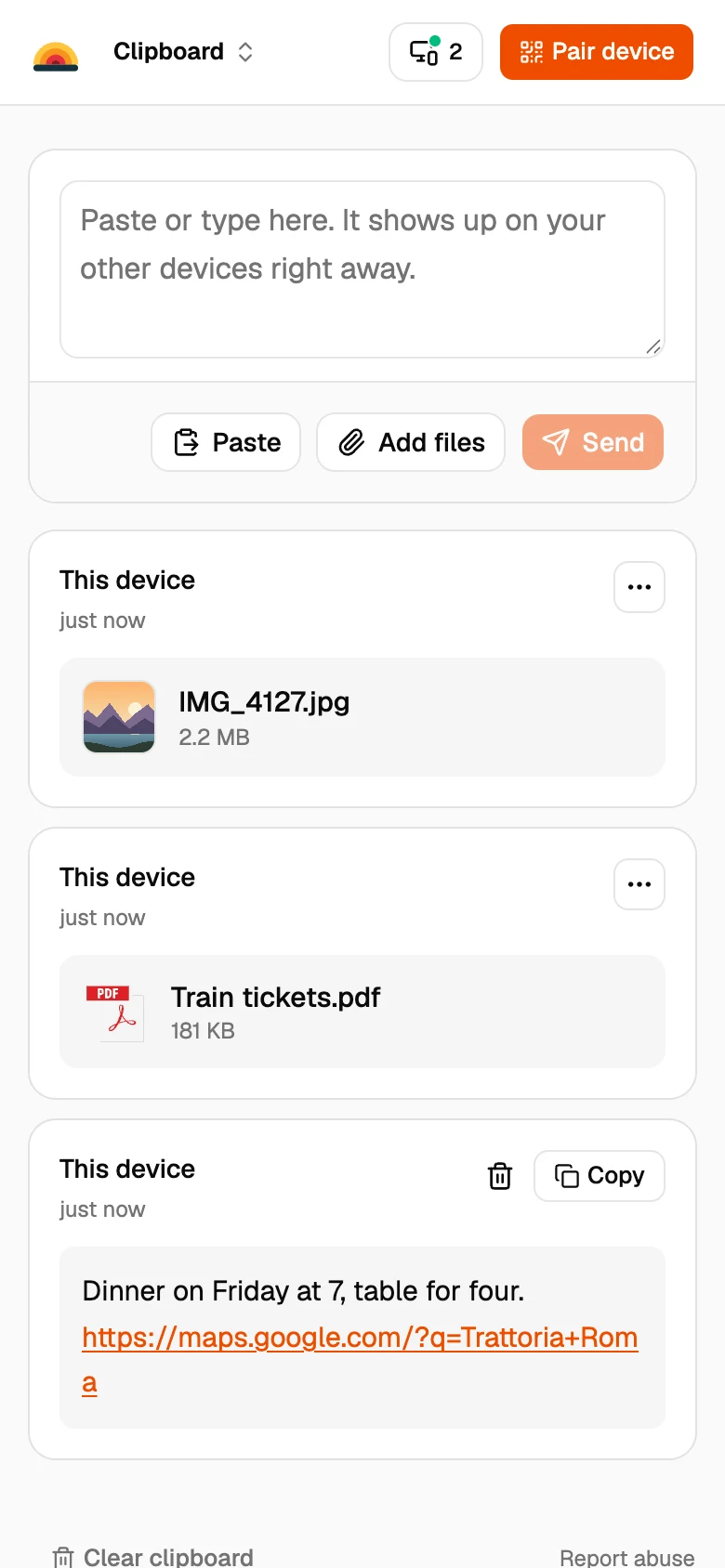
- Add your photos and files. Tap Add files on the iPhone and pick what you want to send. It shows up on your PC a moment later, and Download saves it.
Other ways to get files from an iPhone to a PC
A USB cable
Best for a whole photo library. Plug the iPhone in, tap Trust on the phone, and import with the Photos app on Windows.
iCloud for Windows
Good if you already use iCloud Photos. Once it’s installed and signed in, your photos sync to the PC on their own.
Email or a chat app
Fine for one or two files, but you need to be signed in on both devices, and chat apps often shrink photos.
LocalSend or PairDrop
Free, open source file senders. LocalSend is an app you install on both devices; PairDrop runs in the browser and finds devices on the same Wi‑Fi.
Good to know
- Both devices need to be online at the same time. Files go straight from one to the other and are never stored on our servers.
- Each file can be up to 100 MB. For a whole photo library, a cable is faster.
- Some work and school networks block direct connections between devices. If a file doesn’t arrive, put both devices on the same Wi‑Fi or use your phone’s hotspot.
- It works the other way too: anything you add on the PC shows up on the iPhone.
- Photos already on the PC as HEIC files that won’t open? The free HEIC to JPG converter opens them and saves them as JPG, without uploading them.
Questions
Can you AirDrop from an iPhone to a Windows PC?
No. AirDrop only works between iPhones, iPads and Macs. A browser tool like SharedClipboard, or a USB cable, does the job instead.
Is there an AirDrop app for Windows?
Apple doesn’t make one. SharedClipboard works in any browser on Windows, so there is nothing to install.
Do I need to install anything on my iPhone?
No. The clipboard opens in Safari when you scan the QR code.
Are my files uploaded to a server?
No. Files go straight from your iPhone to your PC, end‑to‑end encrypted. Our servers only help the two devices find each other.
How big can the files be?
Up to 100 MB each. You can send several at once.
Updated September 27, 2026