Copy on your iPhone, paste on your Mac
- Open a private clipboard on your Mac. Go to sharedclipboard.com and click Get a private link.
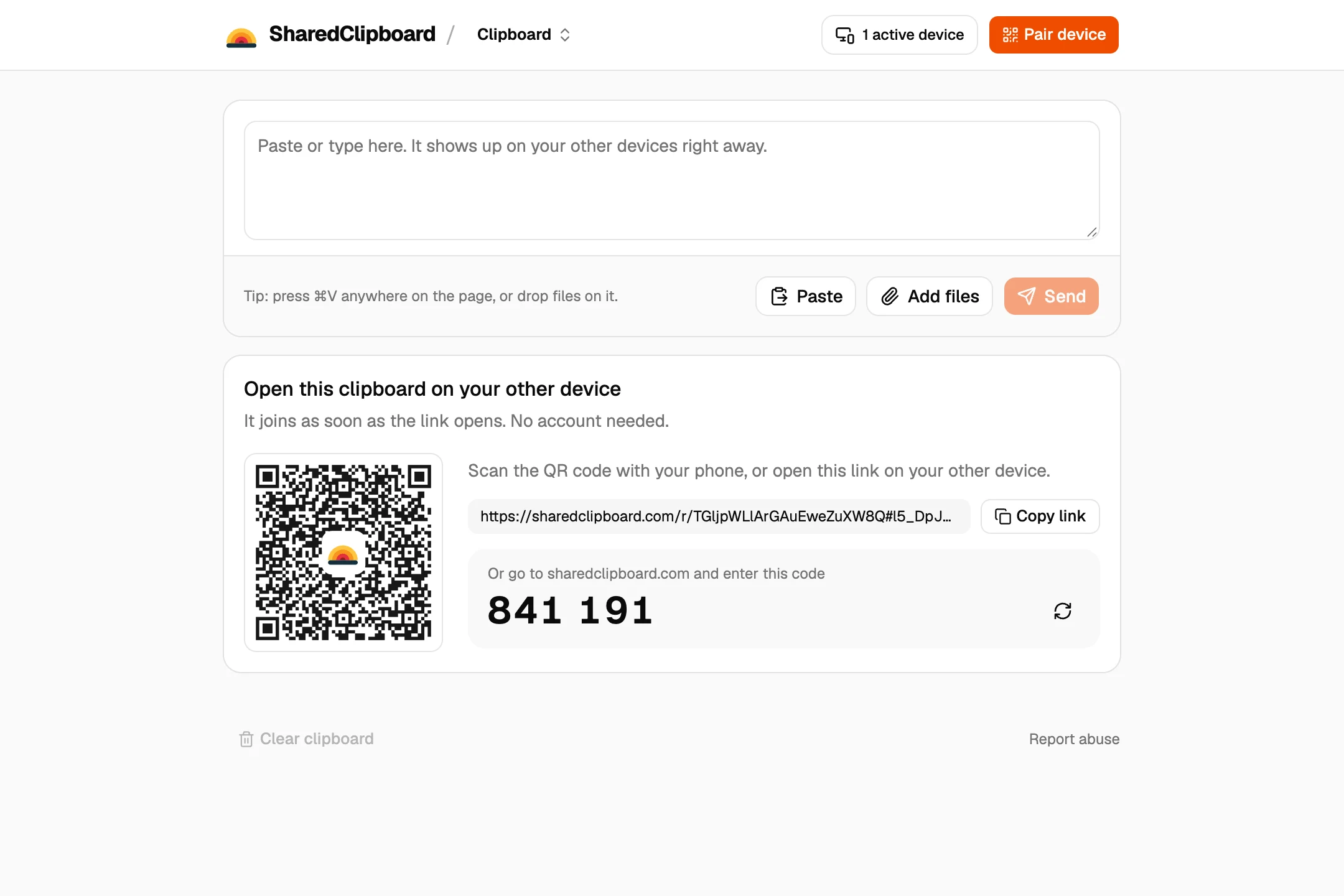
- Open it on your iPhone. Scan the QR code with the iPhone camera and tap the link.
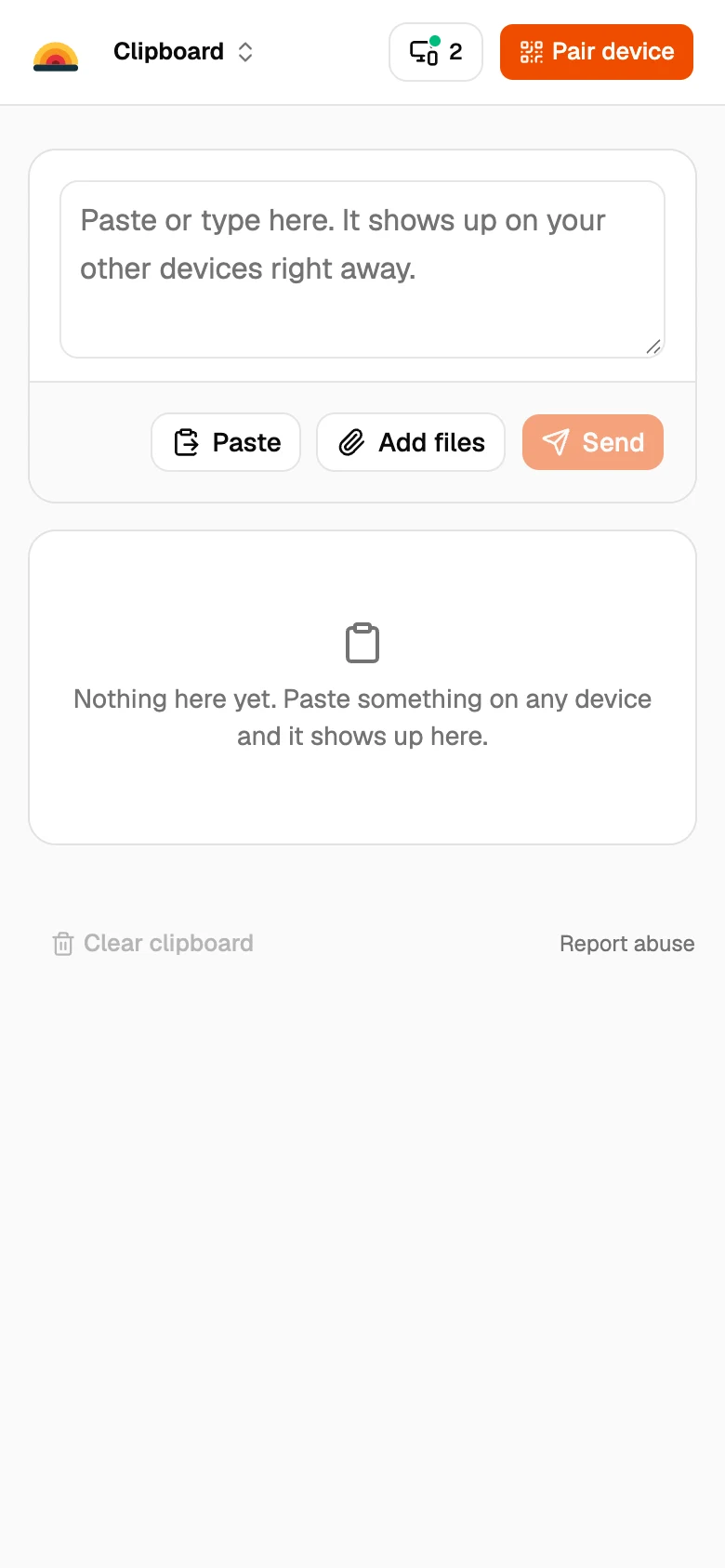
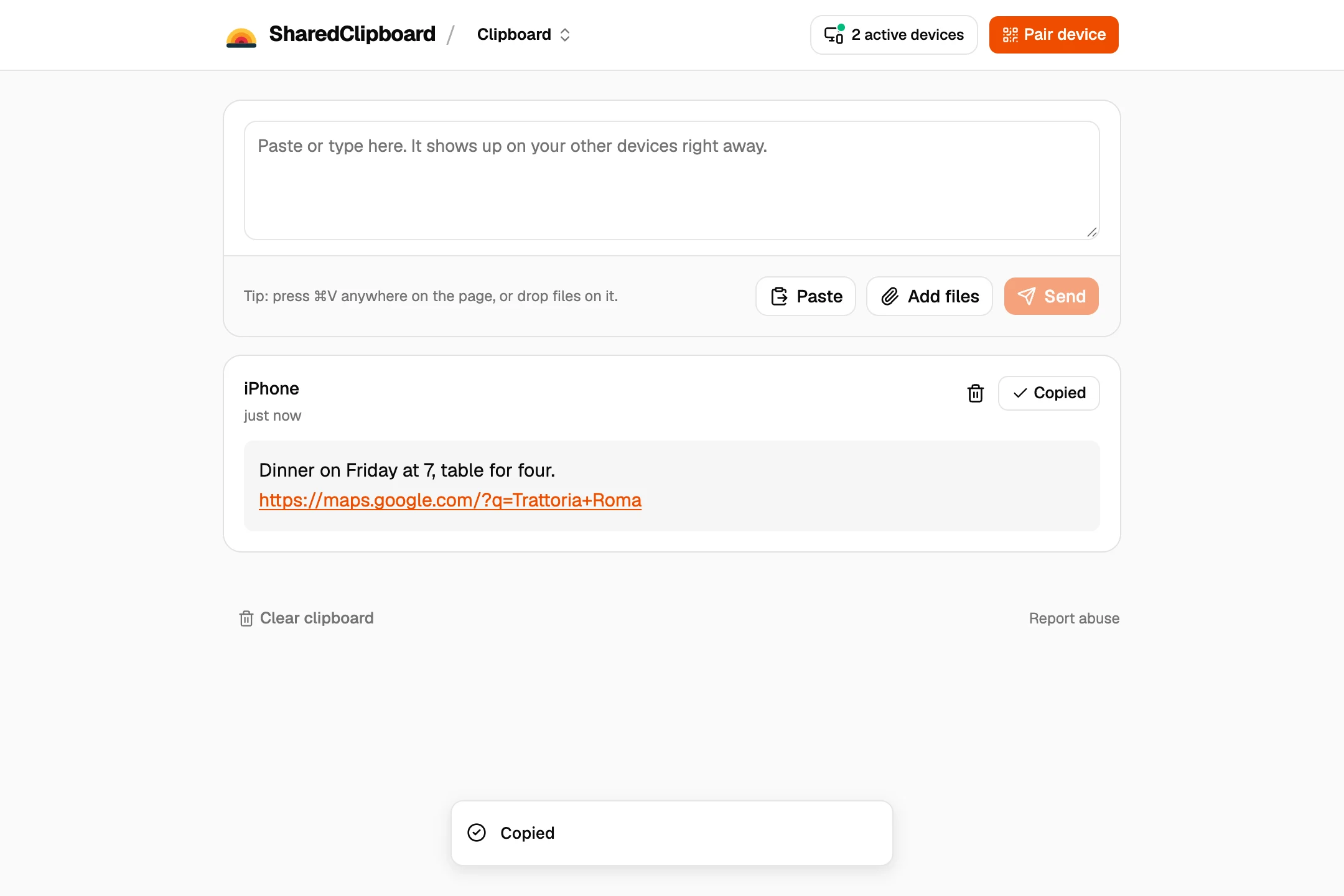
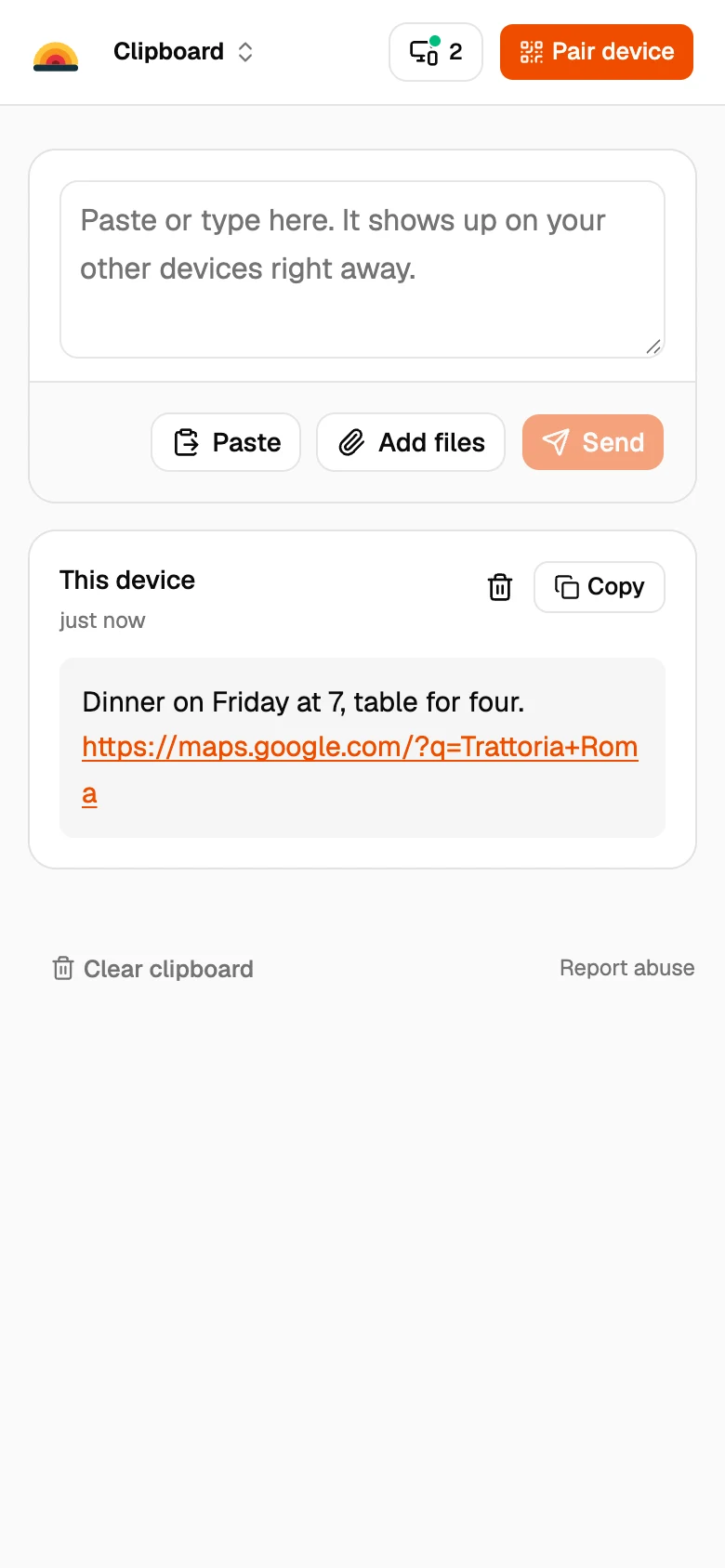
- Paste on the iPhone, copy on the Mac. Tap Paste on the iPhone. On the Mac, click Copy next to the text and paste it wherever you need it.
How to get Universal Clipboard working
Same Apple Account
Both devices need to be signed in to the same Apple Account.
Handoff on both
On the iPhone: Settings, General, AirPlay & Continuity, Handoff. On the Mac: System Settings, General, AirDrop & Handoff.
Wi‑Fi and Bluetooth on
Both need Wi‑Fi and Bluetooth turned on and should be close to each other.
Paste soon after copying
Universal Clipboard only keeps what you copied for a short while. If it still fails, turn Handoff off and on again on both devices.
Good to know
- SharedClipboard also works between an iPhone and a Windows PC, or a Mac and an Android phone, where Universal Clipboard can’t help.
- Text stays until you delete it, so you can paste it later. Anything left deletes itself after 7 days.
- Links you paste open with one click on the other device.
Questions
Why can’t I copy and paste from my iPhone to my Mac?
Universal Clipboard needs the same Apple Account, Handoff, Wi‑Fi and Bluetooth on both devices. If one is off, pasting on the Mac does nothing.
How do I turn on Universal Clipboard?
Turn on Handoff on both devices: on the iPhone in Settings, General, AirPlay & Continuity; on the Mac in System Settings, General, AirDrop & Handoff.
Can I copy and paste from Mac to iPhone too?
Yes, both ways, with Universal Clipboard or with SharedClipboard.
Is it safe to paste passwords?
SharedClipboard is end‑to‑end encrypted, so only your devices can read it. Delete it when you’re done and it’s gone from every device.
Updated September 27, 2026