Send a password
- Create a clipboard. Open sharedclipboard.com and click Create clipboard. To send it to someone else, start a new clipboard just for them.
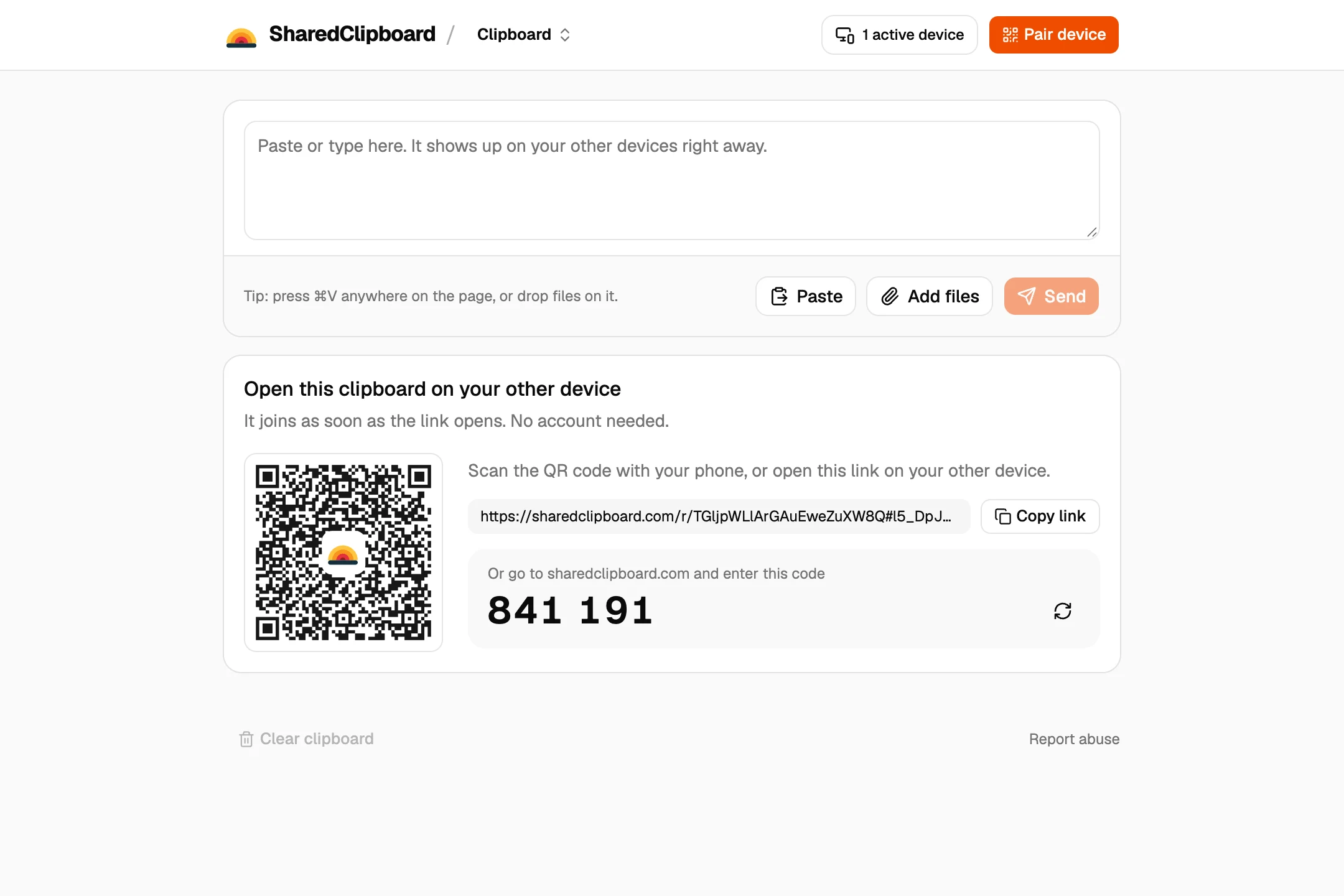
- Connect the other device. Click Connect device and scan the QR code with your phone, or send the link or 6‑digit code to the person you’re sharing with.
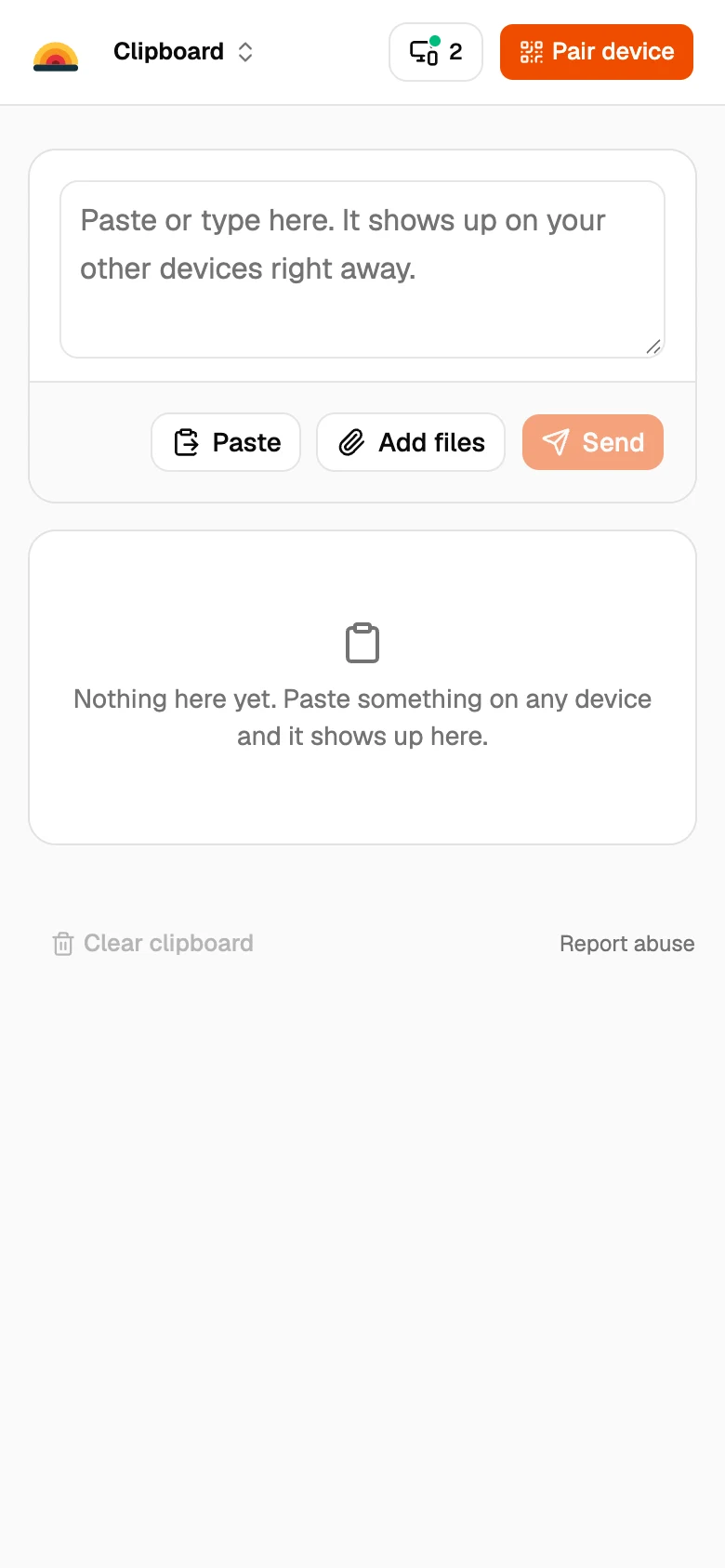
- Paste the password and tick Hide it. It arrives on the other device as dots. Copy puts it on the clipboard without showing it; Show displays it in large, numbered characters, easy to type on a TV or another computer.
- Delete it. Once it’s been used, delete the item. It disappears from every device.
Other ways to share a password
Your password manager
If you both use one, share from there: 1Password can share an item by link, Bitwarden Send shares text that expires, and Apple Passwords and Google Password Manager share with family or groups.
AirDrop
Between Apple devices nearby, the Passwords app can AirDrop a saved password.
Email or chat
Quick, but the password stays in both inboxes or chat histories and their backups. If you do, change the password afterwards.
Wi‑Fi passwords
For Wi‑Fi, a Wi‑Fi QR code lets phones join without typing the password at all.
Good to know
- Hide it hides the password from people looking at your screen. It’s end‑to‑end encrypted either way, so our servers can’t read it.
- Anyone with the clipboard’s link can open it and see everything in it, so use a separate clipboard for each person.
- Show closes by itself after a minute, so a password isn’t left on screen.
- Text stays until you delete it or clear the clipboard.
Questions
How do I send a password securely?
Paste it into SharedClipboard with Hide it ticked. It’s end‑to‑end encrypted, shows as dots on the other device, and you can delete it everywhere once it’s used.
Is it safe to send a password by email or text message?
Not really. It stays readable in both inboxes or chats and their backups for as long as they’re kept. Use an end‑to‑end encrypted way and delete it afterwards.
Can I send a password to someone else?
Yes. Start a new clipboard for them, tick Hide it, and send them the link or 6‑digit code. They see everything in that clipboard, so keep it just for them.
What does Hide it do?
The text shows as dots on every device. Copy copies it without showing it, and Show displays it in large, numbered characters for a minute.
How do I share a password between my phone and computer?
Open the same SharedClipboard on both, paste the password on one with Hide it ticked, and tap Copy on the other.
Updated September 30, 2026