Send a link to your phone
- Get a private link on your computer. Open sharedclipboard.com and click Get a private link. A QR code appears.
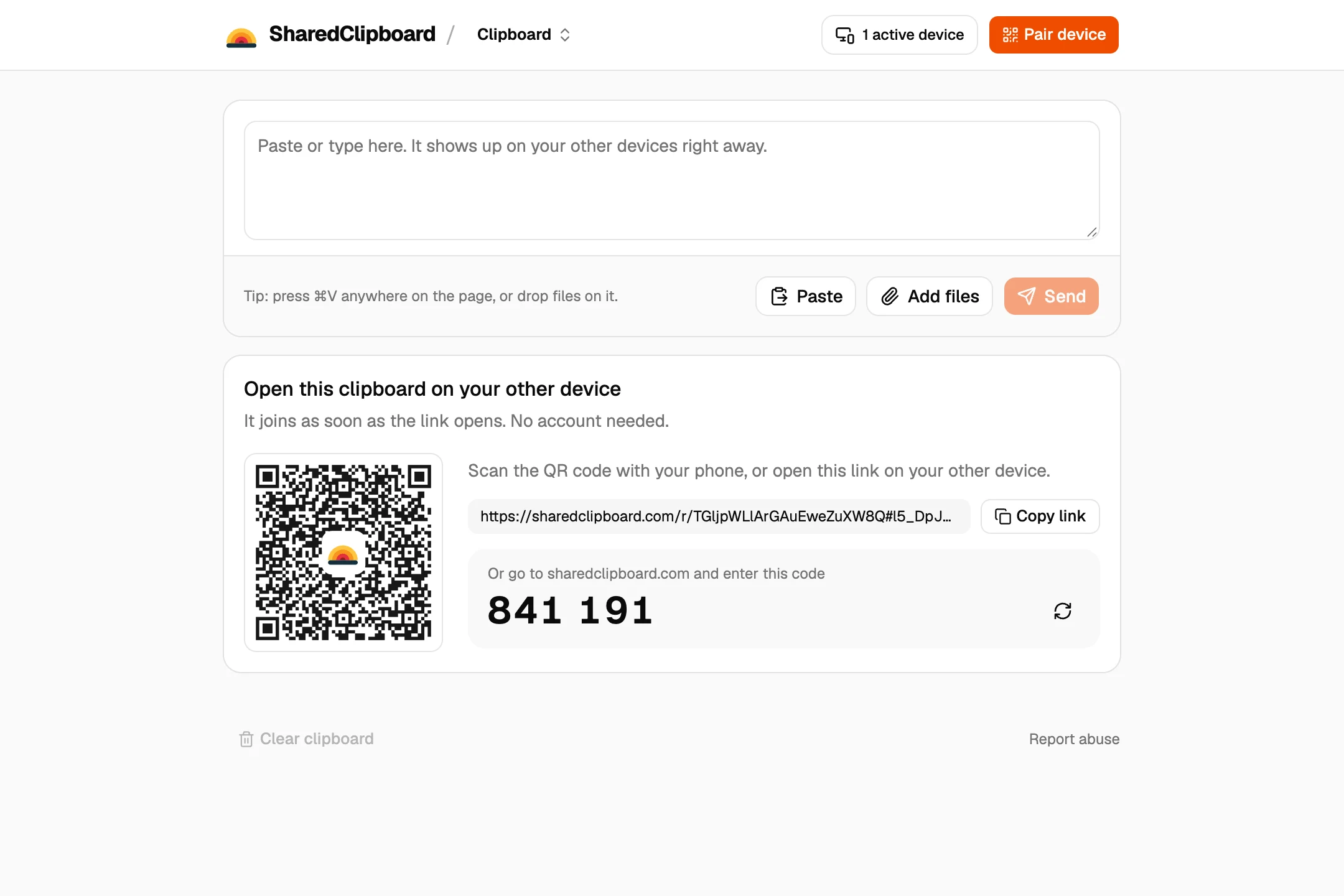
- Open it on your phone. Point the phone camera at the QR code and tap the link.
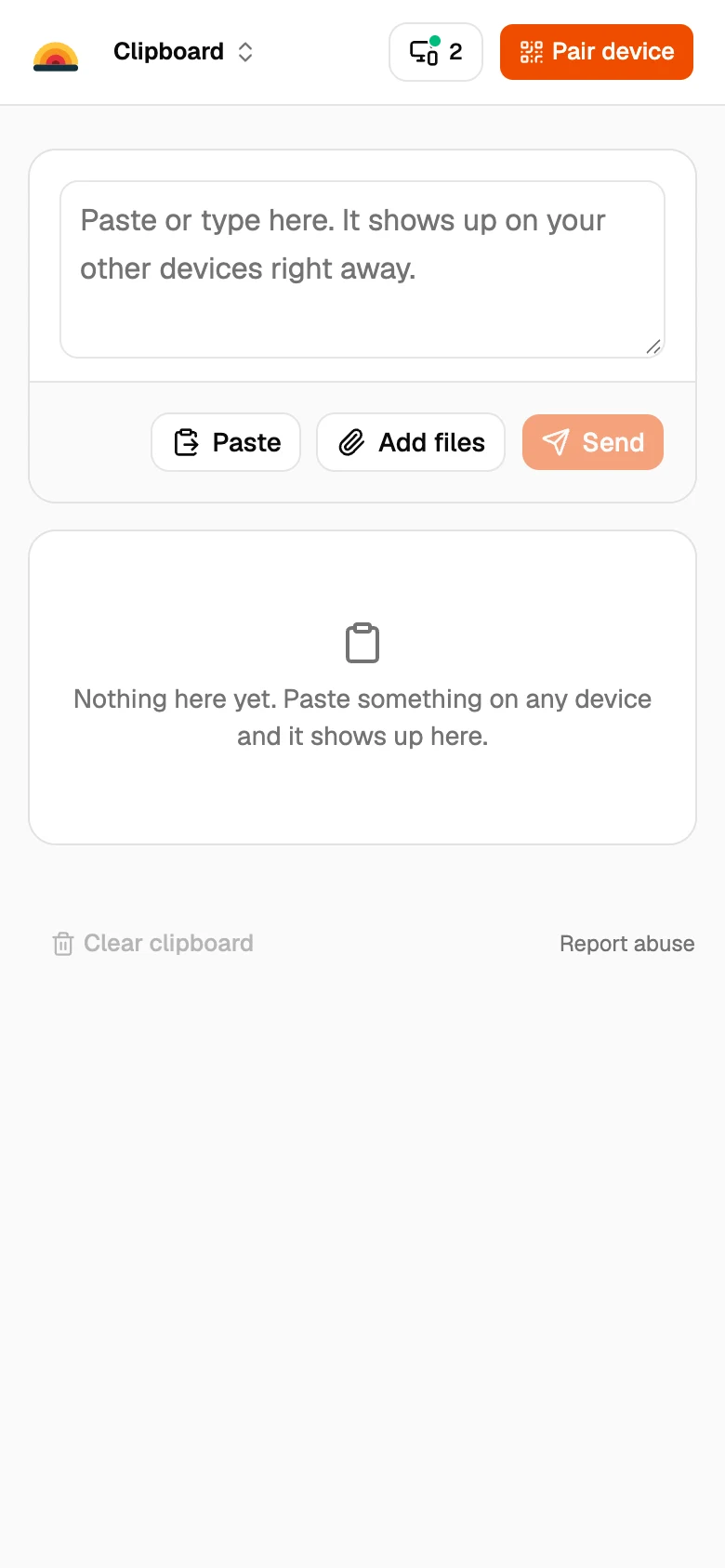
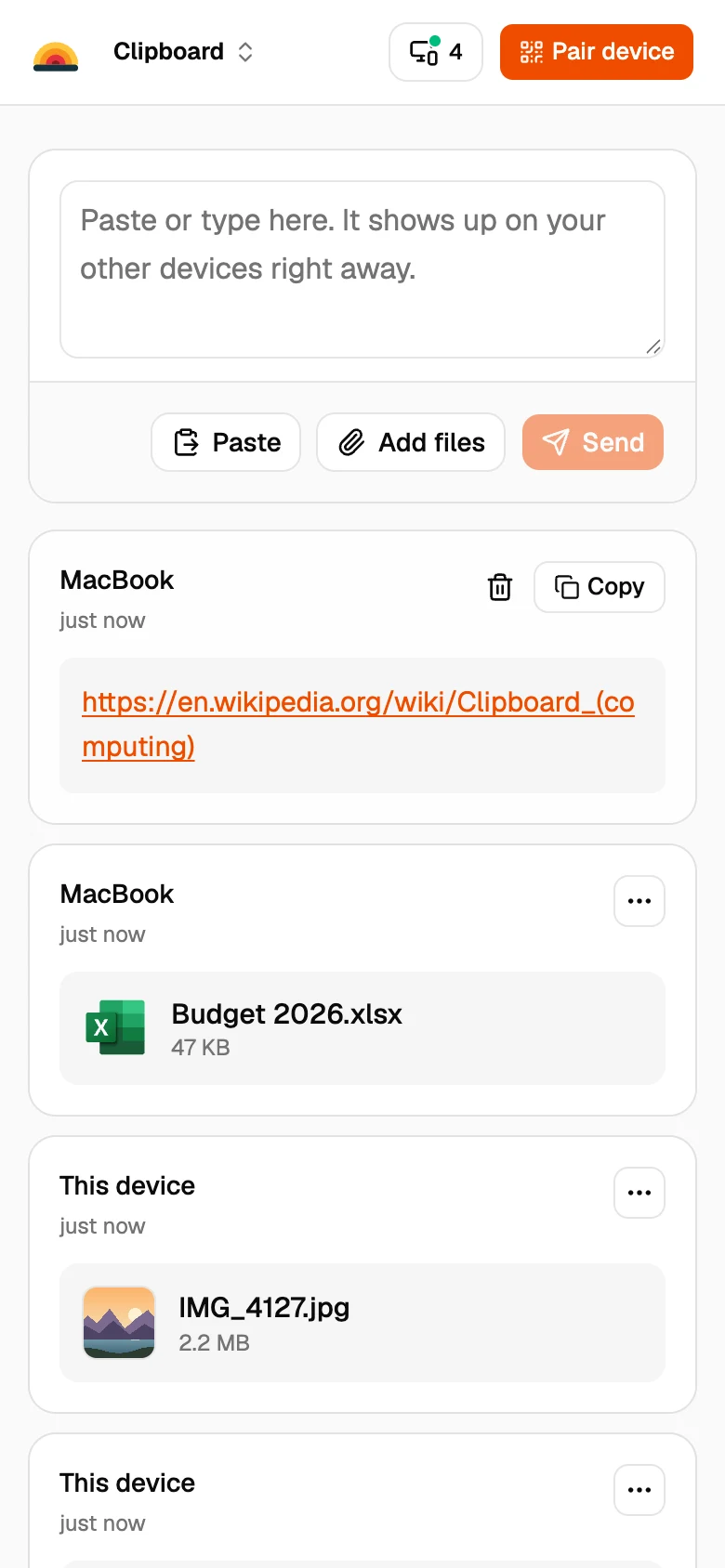
- Paste the link. Paste the link on your computer, or press ⌘V or Ctrl+V anywhere on the page. It shows up on your phone, ready to tap.
Browser features that do this
Chrome
Right-click the tab and choose Send to your devices. Both need Chrome, signed in to the same Google Account.
Safari
With the same Apple Account on both, Safari shows the tabs open on your other Apple devices.
Firefox
Right-click the tab and choose Send Tab to Device. Both need Firefox and the same Mozilla account.
A QR code
Chrome and Edge can show a QR code for the page, which you scan with your phone.
Good to know
- Links open with one tap on the other device.
- It works the other way too: paste a link on your phone and open it on your computer.
- Text stays until you delete it, so you can open it later. Anything left deletes itself after 7 days.
- Links from apps and emails often carry tracking codes. The free link cleaner takes them out before you send.
Questions
How do I send a link from my computer to my phone?
Open the same SharedClipboard on both, paste the link on the computer, and tap it on the phone.
Can I send a link from Chrome on my computer to my iPhone?
Yes. Paste it into SharedClipboard on the computer and tap it on the iPhone. If you use Chrome on both with the same Google Account, Send to your devices works too.
Do I need an account?
No. SharedClipboard is free and has no accounts.
Updated September 27, 2026